
Task Bar Cube Patch Notes: Update 2.0 Changes Guide
Explore Task Bar Cube patch notes for Update 2.0, including Steam item merging, chest limits, inventory checks, and fixes. Plan your next session easily.
Jump to
Latest verified facts — Checked October 27, 2026 against the official store listings: Steam
- Task Bar Cube was released on October 25, 2026.
- Platforms: Steam, Windows.
What Changed in Task Bar Cube Update 2.0?
Your spare Steam gear has a new use: nine matching-quality pieces can become one higher-quality item. The Task Bar Cube patch notes for Update 2.0 also change chest rewards, daily limits, and several interruptions that affect an idle session. These Task Bar Cube patch notes explain what changed and what to check before opening chests or upgrading your collection.
Released on October 26, 2026, BIG MEGA GIGA UPDATE 2.0 follows the game’s October 25 launch. It brings Steam item merging, corrected market prices, inventory checks for chests, and fixes covering saves, Steam Cloud, achievements, and translations.
| Feature | Update 2.0 change |
|---|---|
| Steam item merging | Exchange nine eligible items of the same quality for one item one quality higher |
| Steam chest contents | Receive three to seven items, depending on the chest |
| Daily chest limit | 100 for everyone, reaching up to 288 with DLCs and the Battle Pass |
| Steam Market prices | Prices display correctly on Steam items |
| Stuck battles | Battles end automatically after three minutes when stuck |
| Market and Quests | Both are accessible from the beginning |
| Offers | Open through their button instead of appearing automatically |
Existing players keep their progress, items, and purchases through this update. If you are returning after launch, continue with your existing collection and review the new merge option before deciding what to keep or sell.
How Steam Item Merging Works
The new merge feature gives Steam equipment another purpose beyond collecting or selling it. Inside Rarity Upgrade, you can exchange nine Steam weapons, armor pieces, or jewelry pieces of the same quality for one item a quality higher.
The input types can be mixed. Your batch does not need to contain only weapons or only armor; matching quality is the requirement connecting the nine pieces.
| Merge rule | What to prepare |
|---|---|
| Eligible equipment | Steam weapons, armor, and jewelry |
| Required quantity | Nine items |
| Quality requirement | All nine inputs share the same quality |
| Mixed equipment types | Allowed |
| Result | One item one quality higher |
| Validation | Steam checks each merge |
To use this addition to the Task Bar Cube patch notes:
- Review your Steam weapons, armor, and jewelry.
- Group eligible pieces by quality.
- Choose nine pieces from one quality group.
- Put those pieces into Rarity Upgrade for the merge.
For example, a group containing weapons, armor, and jewelry can qualify together when all nine pieces share a quality. You do not need to split that group into separate equipment categories.
Check the individual items before committing them to a merge. Corrected Steam Market prices give you a clearer basis for comparing the pieces you are considering. Compare the items you would exchange with the higher-quality item you want to pursue.
Keep rarity and tier separate when planning upgrades. Task Bar Cube has seven gear rarities, spanning Common through Divine, and seven tiers for every item. This Steam merge increases quality by one step; plan around that specific result.
For inventory organization, sort your eligible equipment into quality groups before choosing a batch. That makes the nine-item requirement easier to track and lets you review potential inputs together.
Steam Chests: Rewards, Limits, and Storage
Chest rewards receive several connected changes in Update 2.0. Each Steam chest now contains three to seven items, with the amount depending on the chest.
Inventory space matters before opening one. When your Steam storage is full, the chest stays closed, and the game displays how many free slots you need.
| Chest feature | Current behavior |
|---|---|
| Items per chest | Three to seven, depending on the chest |
| Full Steam storage | Prevents the chest from opening |
| Storage message | Shows how many free slots are needed |
| Standard daily limit | 100 Steam chests |
| Expanded daily limit | Up to 288 with DLCs and the Battle Pass |
| Limit reset | Daily |
| Exploit fixes | Close chest-limit bypasses and PC-clock reward farming |
Check storage before opening chests
Use the inventory message to guide your cleanup. If a chest cannot open, free the number of slots the game requests, then return to it.
Review the Steam equipment already occupying that storage. Eligible items can enter the new merge system, while Steam items can also be sold through the Steam Community Market. Compare their displayed prices and quality before choosing which pieces to use.
The Task Bar Cube patch notes connect chest handling and merging through this inventory management loop: chests add equipment, equipment needs storage, and eligible groups can be exchanged through Rarity Upgrade. Check those groups before working through more chests.
Plan around the daily limit
The Task Bar Cube patch notes set the standard daily Steam chest limit at 100 for everyone. DLCs and the Battle Pass can raise that limit as high as 288, and the limit resets each day.
Use your applicable limit when planning a session. Leave the PC clock alone: Update 2.0 closes the reward-farming exploit involving clock changes, along with methods used to bypass the chest limit.
Task Bar Cube awards a Steam chest every five minutes of play, subject to its daily limit. Chest levels have the following drop rates:
| Chest level | Drop rate |
|---|---|
| Lv.1 | 85% |
| Lv.2 | 10% |
| Lv.3 | 3% |
| Lv.4 | 1.5% |
| Lv.5 | 0.5% |
Level 1 accounts for 85% of chest drops, so plan your storage around regular chest rewards rather than expecting frequent high-level drops. Keep the two systems separate when reading the numbers: drop rates describe which chest level you receive, while the update’s three-to-seven range describes item contents.
Market Access, Quests, and Idle Session Fixes
Several changes make the game easier to manage from the beginning and during longer sessions. Market and Quests are now available immediately, and offers no longer appear on their own.
That matters in an idle RPG designed to sit alongside your other desktop activity. You can run Task Bar Cube in a small window or fullscreen while your heroes fight automatically, including while you are away.
| System | Update 2.0 change |
|---|---|
| Market | Available from the start |
| Quests | Available from the start |
| Offers | Accessed manually through their button |
| Stuck battles | End automatically after three minutes |
| Saves | Receive fixes |
| Steam Cloud | Receives fixes |
| Achievements | Receive fixes |
| Translations | Receive fixes across every language |
Review Market and Quests early
Open Market and Quests when starting a character or returning to the game. Their immediate availability gives you access to both systems without an initial unlock requirement.
For Steam item decisions, review the corrected price displays before choosing merge inputs. Compare all nine pieces in a potential batch instead of looking only at the higher quality you are pursuing.
Let stuck battles reach the automatic cutoff
A stuck battle now ends automatically after three minutes. That gives stalled encounters a defined endpoint during an idle session.
Distinguish this change from a general battle timer: the fix specifically addresses stuck battles. When checking on your heroes, keep that three-minute cutoff in mind if an encounter appears stalled.
Open offers when you want to browse them
Offers now wait behind their button. Open that button when you want to review them, then return to your equipment, quests, or other progression systems.
Together, these Task Bar Cube patch notes change both reward handling and the interruptions around it. The chest and merge rules affect inventory decisions, while manual offers and the stuck-battle cutoff affect how a session runs.
What Returning Players Should Check
Update 2.0 preserves existing progress, items, and purchases. Start by reviewing what you already own, then work through the systems affected by the update.
Use this checklist when returning:
- Review Steam item prices. Check the corrected displays before choosing equipment to sell or merge.
- Group eligible equipment by quality. Look for sets of nine Steam weapons, armor pieces, or jewelry pieces.
- Check Steam storage. Follow the required-slot message if a chest cannot open.
- Review Market and Quests. Both are available from the start.
- Check your daily chest limit. Plan around the standard 100 or the expanded limit available with DLCs and the Battle Pass.
- Open offers manually. Use their button whenever you want to browse.
Start with prices and equipment groups because they inform the same decision. A piece you are considering for Rarity Upgrade also has a market price to review. Compare your chosen inputs before exchanging nine items for one higher-quality result.
Then check storage before opening additional chests. The three-to-seven-item reward range makes available inventory space part of chest management. Follow the game’s slot requirement instead of repeatedly attempting an opening while storage remains full.
Save, Steam Cloud, achievement, and translation fixes also form part of these Task Bar Cube patch notes. When resuming an existing game, review your progress and achievements as you return to normal play.
If you are starting fresh, you can download Task Bar Cube on Steam. Begin with the updated Market and Quest access, then review Steam equipment as your collection grows.
FAQ
What are the main changes in the Task Bar Cube patch notes for Update 2.0?
Update 2.0 adds Steam item merging, changes chest contents to three to seven items, and sets the standard daily chest limit at 100. It also corrects Steam item price displays, opens Market and Quests immediately, stops automatic offer pop-ups, and adds fixes for stuck battles, saves, Steam Cloud, achievements, and translations.
How many items do I need for a Steam item merge?
You need nine eligible Steam items of the same quality. Weapons, armor, and jewelry can be mixed in that batch. Put them into Rarity Upgrade to receive one item a quality higher. Steam validates each merge.
Why won’t my Steam chest open?
Full Steam storage prevents a chest from opening. The game tells you how many free slots are required. Free the requested space before trying again.
Will Update 2.0 remove my progress or purchases?
No. Existing progress, items, and purchases remain intact through Update 2.0. Returning players can continue with their existing collection and use the updated chest, market, and merge systems.
Continue with
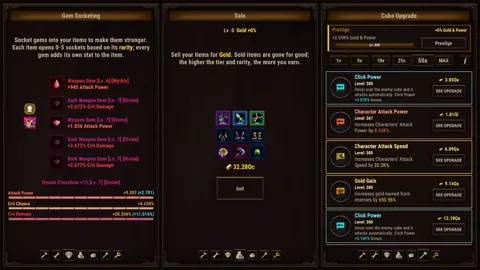 Task Bar Cube Beginner Guide: 10 Tips to Get StartedUse this Task Bar Cube beginner guide to learn hero upgrades, gear fusion, village resources, Prestige, and Steam chests before planning your next session.
Popular pages
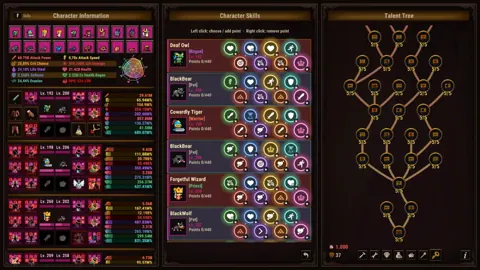
Task Bar Cube Classes: Skills, Gear, and Team Builds
Explore Task Bar Cube classes, combat skills, talent trees, pets, and gear upgrades. Shape your hero builds and strengthen your team for idle battles.
Task Bar Cube How To Get Steam Chests: Drops & Limits
Task Bar Cube how to get steam chests: learn the five-minute drop rate, chest level odds, daily limits, item rewards, and what to check when drops stop.
Task Bar Cube Heroes: Classes, Gear, and Upgrade Guide
Build your Task Bar Cube heroes with five classes, combat skills, pets, and gear upgrades. Learn how talents, village boosts, and Prestige shape your team.
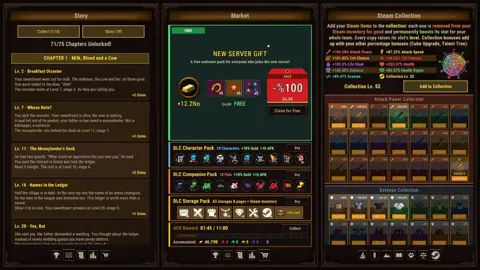
Task Bar Cube Pets Guide: Upgrades and Team Planning
Explore Task Bar Cube pets, Animal Shelter upgrades, and team planning. Learn how pets fit alongside gear, village resources, and long-term progression.
Join the community
Official channels for news, updates and player help: