
Task Bar Cube How To Get Steam Chests: Drops & Limits
Task Bar Cube how to get steam chests: learn the five-minute drop rate, chest level odds, daily limits, item rewards, and what to check when drops stop.
Jump to
Task Bar Cube How To Get Steam Chests: Start With Playtime
Steam chests turn time spent in Task Bar Cube into collectible items you can keep or sell. The answer to “Task Bar Cube how to get steam chests” is straightforward: play the game to earn a chest about every five minutes, up to your daily limit. This Task Bar Cube how to get steam chests guide covers that timer, the five chest levels, opening rewards, and how to approach a counter that stops moving.
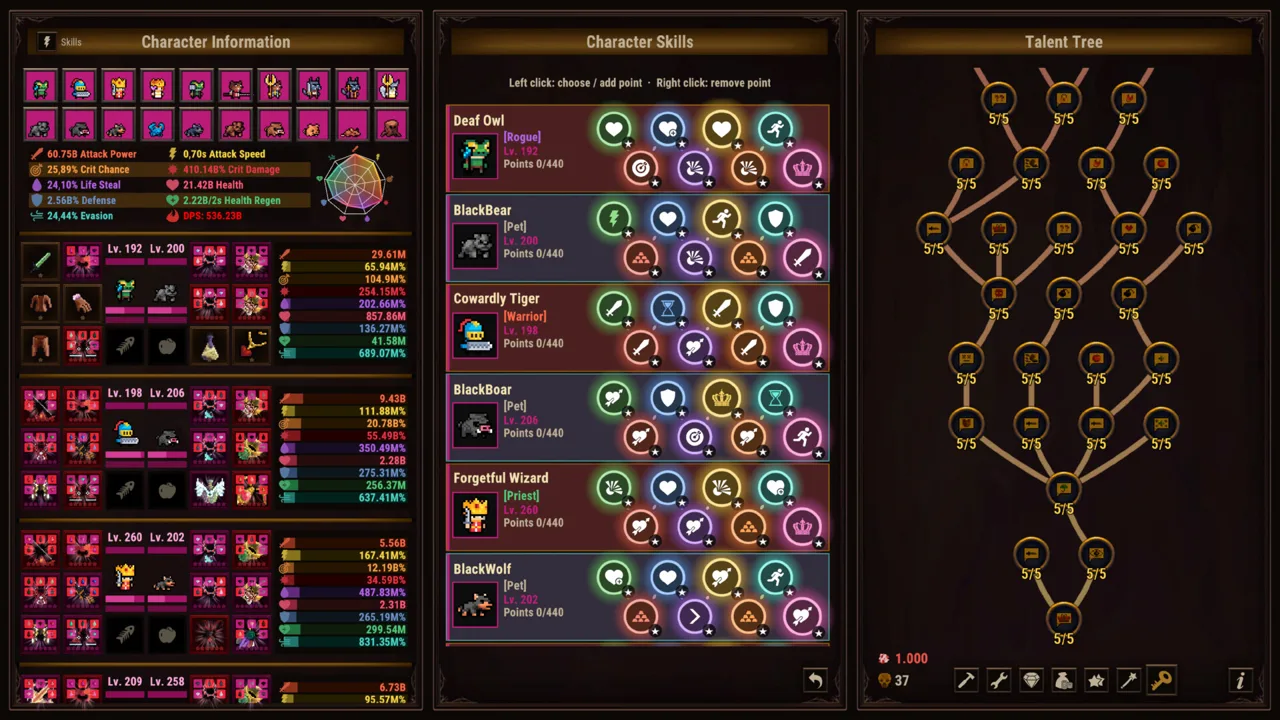
Task Bar Cube is a free-to-play desktop idle RPG that runs in a small taskbar window or fullscreen. Your heroes handle combat automatically, leaving you free to manage equipment, build your team, or keep the game alongside your other desktop activities.
To get started:
- Install and launch Task Bar Cube on Steam.
- Play with the game running in your preferred display mode.
- Allow about five minutes of play for a Steam chest drop.
- Watch your Steam chest counter as you continue playing.
- Open earned chests in Task Bar Cube or consider selling them through the Steam Community Market.
Keep playtime and your daily allowance in mind together. The five-minute interval explains how frequently you earn chests, while the daily limit controls how many you can receive.
Use the taskbar window if you want to keep the game visible while doing something else. Choose fullscreen when you want more room to manage heroes, pets, and equipment. Both are supported ways to play; choose whichever fits your desktop setup.
The game also has AFK progression, but plan Steam chest collection around its stated playtime reward. Keep AFK earnings, battle boxes, and Steam chest drops separate when checking your rewards.
Steam Chest Levels and Drop Rates
Each Steam chest drop belongs to one of five levels. Level 1 accounts for the large majority of drops, while Level 5 has the smallest share.
 Image: Steam / DarkRook Interactive
| Steam chest level | Drop chance |
|---|---|
| Lv.1 | 85% |
| Lv.2 | 10% |
| Lv.3 | 3% |
| Lv.4 | 1.5% |
| Lv.5 | 0.5% |
For Task Bar Cube how to get steam chests, separate earning a chest from rolling its level. Playtime supplies the drop; the percentages above describe which chest level you receive.
An 85% Level 1 rate makes ordinary chests a normal part of collecting. Receiving several of them does not, by itself, indicate a problem with your rewards. Check whether your chest count increases before treating a run of low-level drops as a collection issue.
Likewise, the 0.5% Level 5 chance describes a probability, rather than a scheduled reward. Avoid turning that percentage into a personal deadline for receiving one. A rare chest is still a chance-based result.
Higher-level chests produce higher-quality items. That makes chest level relevant when deciding what to open, keep, or sell, but it remains separate from the number of chests available within your daily allowance.
Keep Chest Levels Separate From Equipment Tiers
Task Bar Cube also has equipment in seven rarities, ranging from Common to Divine, with seven tiers for each item. Those equipment categories belong to the RPG’s broader progression system.
Steam chest levels run from Lv.1 through Lv.5. Read the chest’s own level when comparing drops, and use equipment rarity and tier when managing your heroes’ gear. Mixing those systems makes an otherwise simple reward screen harder to understand.
What You Get When You Open Steam Chests
Opening a Chest Lv.1 in Task Bar Cube awards three Steam items, each rolled separately. Its rewards draw from nine item types, and each item has a quality result.
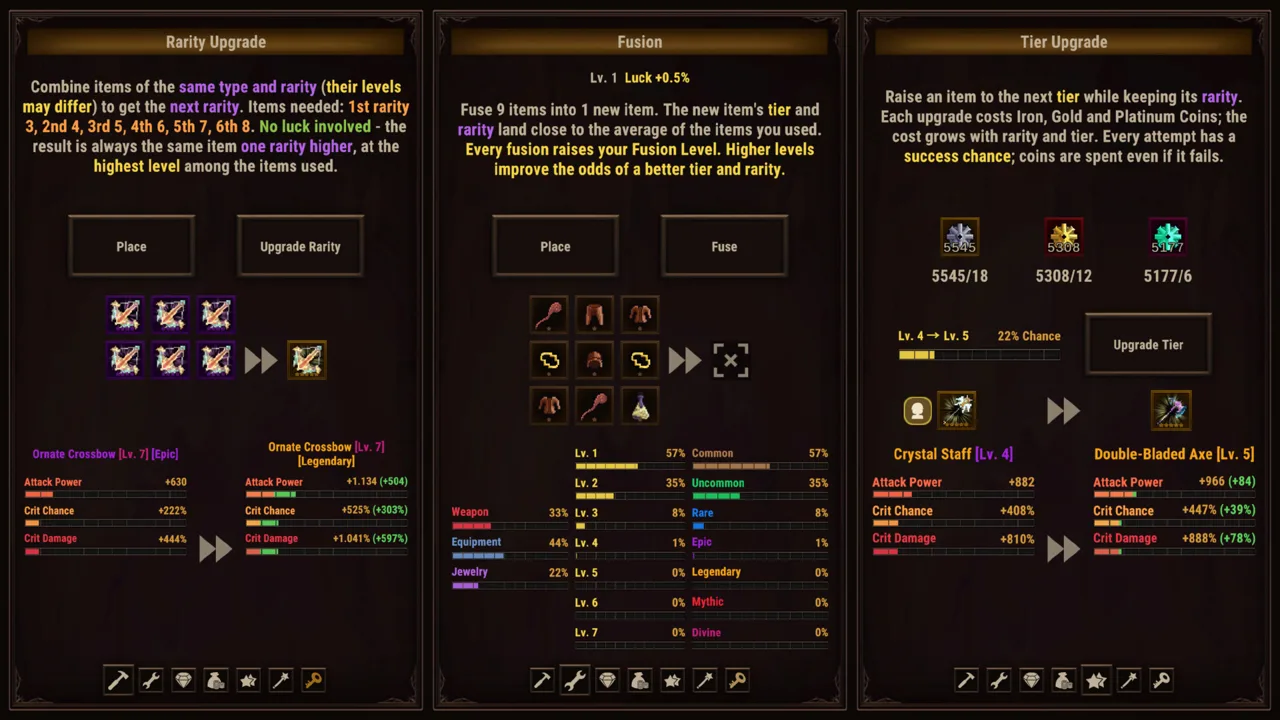 Image: Steam / DarkRook Interactive
That separate-roll structure matters: a single chest contains multiple individual results. Check all three items rather than judging the opening by whichever reward catches your eye first.
Here are selected quality probabilities for each item inside a Chest Lv.1:
| Item quality | Chance per item |
|---|---|
| 5% | 73.30091% |
| 10% | 15.13503% |
| 15% | 7.26481% |
| 20% | 3.027% |
| 25% | 0.50854% |
| 50% | 0.03814% |
| 100% | 0.00017% |
These are selected outcomes, rather than the complete quality distribution. They show how heavily Level 1 rewards favor the lower end of the quality range.
The 100% quality result is especially rare at 0.00017% per item in a Level 1 chest. Keep that figure separate from the 0.5% chance of receiving a Level 5 chest: one concerns an item’s quality inside a particular chest, while the other concerns the chest level awarded during play.
For Task Bar Cube how to get steam chests, understanding those two rolls helps set expectations. Collecting more chests gives you more openings, but each opening still has its own reward results.
Open a Chest or Sell It?
Both chests and their Steam items can be sold on the Steam Community Market.
Before opening a chest, compare its current market price with your interest in collecting the contents. Keep it unopened if you prefer selling the chest itself. Open it if you want the item rolls.
Check prices again before listing rewards. A rare result and a worthwhile selling price are different considerations; decide what to keep based on the actual item and what you want from your collection.
Daily Steam Chest Limits and DLC Bonuses
Your daily Steam chest limit is a separate restriction from the five-minute drop interval. Increasing the allowance gives you room for additional daily drops.
 Image: Steam / DarkRook Interactive
The Task Bar Cube: Support Package includes a +50 daily Steam chest limit benefit. It also includes storage and AFK benefits, which affect different parts of the game.
| Package benefit | What it increases |
|---|---|
| +50 Daily Steam Chests | Daily Steam chest allowance |
| +50 Box Limit | Storage for battle boxes, oysters, and starfish |
| +1 Hour AFK | Duration of AFK earnings |
Keep these bonuses distinct when evaluating the package. Extra battle-box storage is useful for managing accumulated resources, but it belongs to a different counter from daily Steam chest drops. Similarly, a longer AFK earnings duration concerns AFK rewards.
The package also includes pets and gold bonuses. Evaluate those features alongside the chest allowance when deciding whether the purchase fits your playstyle.
Check the Allowance You Already Use
Before buying additional capacity:
- Read your current daily Steam chest counter.
- Check whether drops are arriving during play.
- Compare your usual collection with the allowance already available.
- Review the package’s current benefits before purchasing.
For Task Bar Cube how to get steam chests, focus on the limit that actually affects your collection. If your normal sessions leave room within your daily allowance, additional capacity addresses a restriction you are not currently reaching.
If you regularly reach your displayed limit, extra allowance becomes relevant to your routine. Make that decision from your own counter rather than another account’s total.
Verify the Bonus After Purchase
The Support Package activates automatically a few seconds after purchase and does not require a restart.
Check the daily Steam chest allowance after activation. Also check the separate storage and AFK benefits so you can identify which value you are reading.
If a purchased benefit does not appear correctly, record the package name, purchase time, and displayed counter for a support request. Keep the issue specific: a missing allowance increase and a stopped chest counter call for different descriptions.
What to Check When Steam Chests Stop Dropping
A chest counter that stops increasing deserves a different response from a streak of Level 1 rewards. Start by identifying exactly what has stopped.
| What you see | What to check |
|---|---|
| Chests arrive, mostly at Lv.1 | Compare the results with the 85% Level 1 drop rate |
| Your displayed daily allowance is reached | Check the daily Steam chest limit |
| The counter stays at a value such as 0/220 | Record the counter and elapsed playtime for support |
| A purchased allowance bonus is missing | Record the package and the displayed allowance |
For Task Bar Cube how to get steam chests troubleshooting, describe the counter before changing your setup. “No chests” can mean no new drops, disappointing chest levels, or a daily allowance that has already been used.
Keep a short record of:
- The current chest count and daily limit.
- Whether chests were dropping earlier in the session.
- How long you played while the counter remained unchanged.
- Any recent purchase affecting your allowance.
- Whether the issue concerns receiving chests or opening them.
If your display reads 0/220, include that exact value. If drops stop at a different count, include that instead. Specific information gives support a clearer problem to investigate.
Avoid buying another package as a troubleshooting step. Purchase extra capacity for its stated benefits, and handle missing drops as a separate support issue.
Keep screenshots of the relevant counter and purchase details when requesting help. After an update, check the same values again so you can tell whether the behavior changed.
FAQ
Task Bar Cube how to get steam chests: what triggers a drop?
Play Task Bar Cube to earn a Steam chest about every five minutes, up to your daily limit. The game supports both a taskbar window and fullscreen play.
What are the chances of getting a Level 5 Steam chest?
A Level 5 chest has a 0.5% drop chance. The other rates are 85% for Level 1, 10% for Level 2, 3% for Level 3, and 1.5% for Level 4.
How many items are inside a Chest Lv.1?
Opening a Chest Lv.1 awards three Steam items, with each item rolled separately. Its reward pool includes nine item types and multiple quality outcomes.
Can you sell Steam chests without opening them?
Yes. Both unopened chests and the Steam items they contain can be sold on the Steam Community Market. Compare the chest’s current price with your interest in its contents before choosing whether to open it.
Continue exploring
Task Bar Cube Skills Guide: Heroes, Talents, and Gear
Explore Task Bar Cube skills, five character classes, talent trees, pets, and gear upgrades. Plan your development and tackle long-term idle progression.
Task Bar Cube Classes: Skills, Gear, and Team Builds
Explore Task Bar Cube classes, combat skills, talent trees, pets, and gear upgrades. Shape your hero builds and strengthen your team for idle battles.
Join the community
Official channels for news, updates and player help: